Create a campaign and assign posts and links
Start a campaign for one goal, then bring posts and their tracked links into it so the numbers add up in one place.
A campaign holds the posts, tracked links, leads, calls, and emails for one goal: a launch, a client, an offer, a lead magnet. Create one before you write the posts for it, and everything you make inside it is grouped from the start.
-
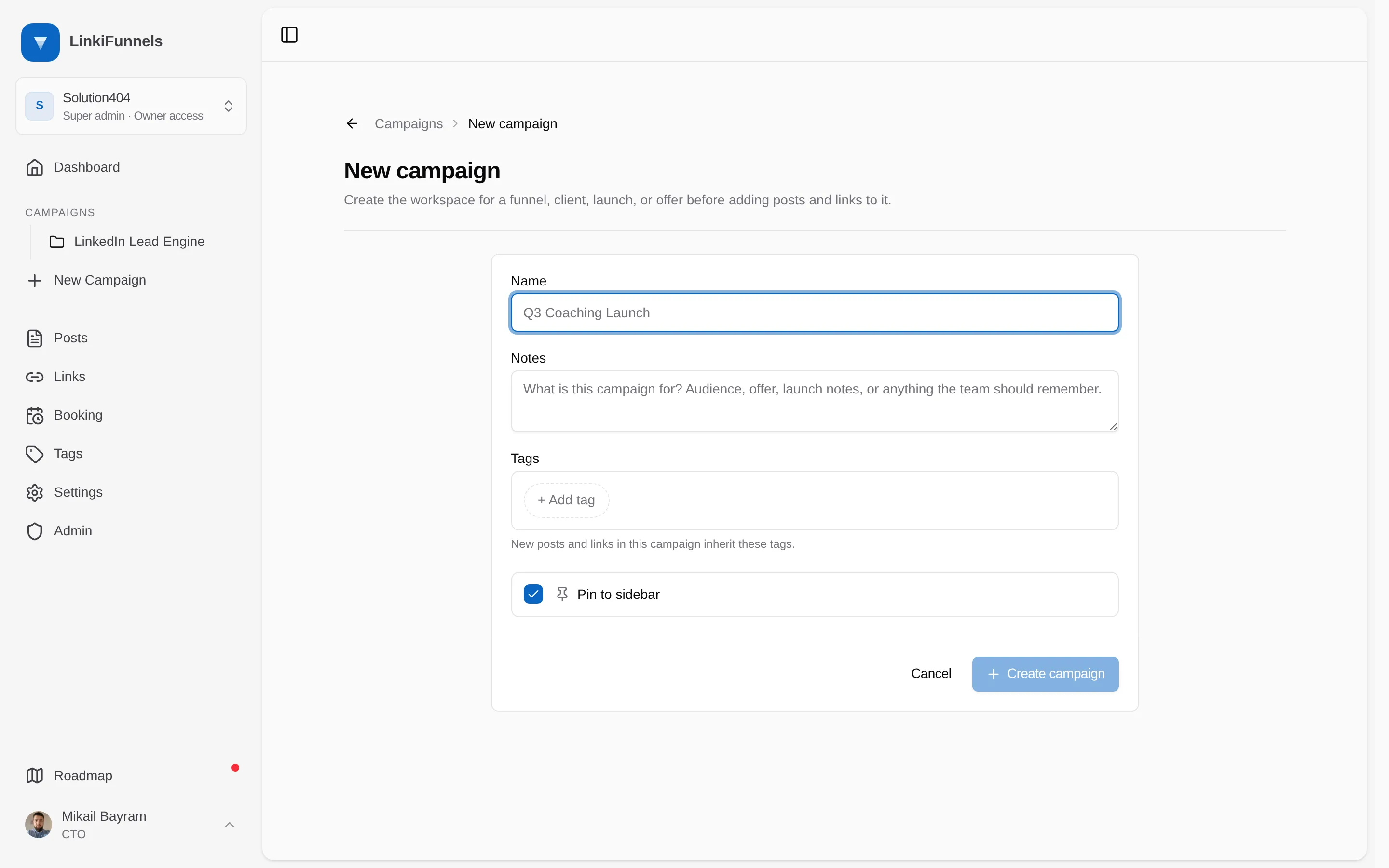
Open Campaigns and choose New campaign
Give it a name and, if you like, notes about the audience and offer. Tags added here are inherited by every post and link in the campaign.
-
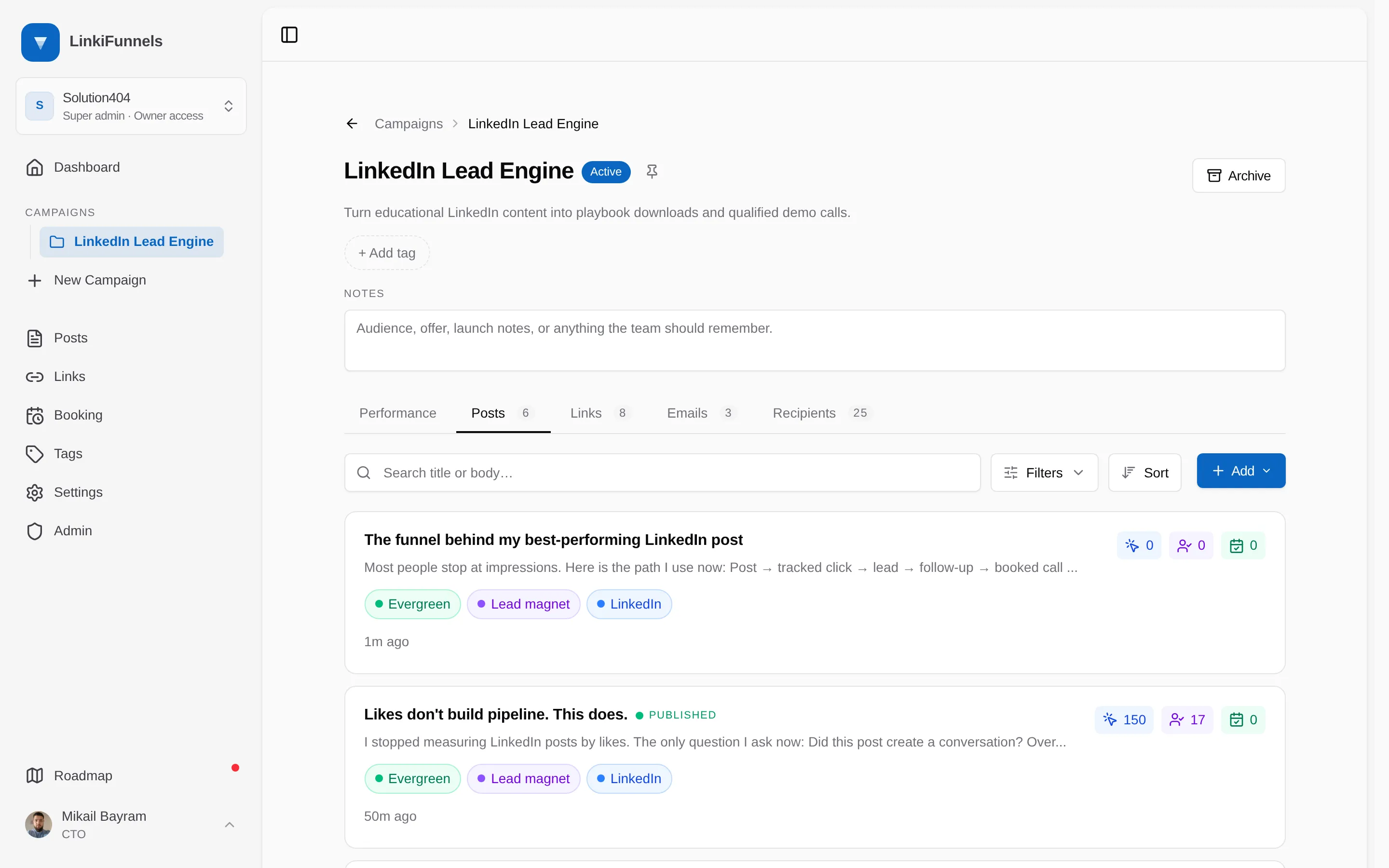
Add posts on the Posts tab
Choose Add on the campaign’s Posts tab. New post opens the composer with this campaign already set. Add existing lists every post that is not in a campaign yet; search, pick the ones that belong here, and add them. Their tracked links come along.
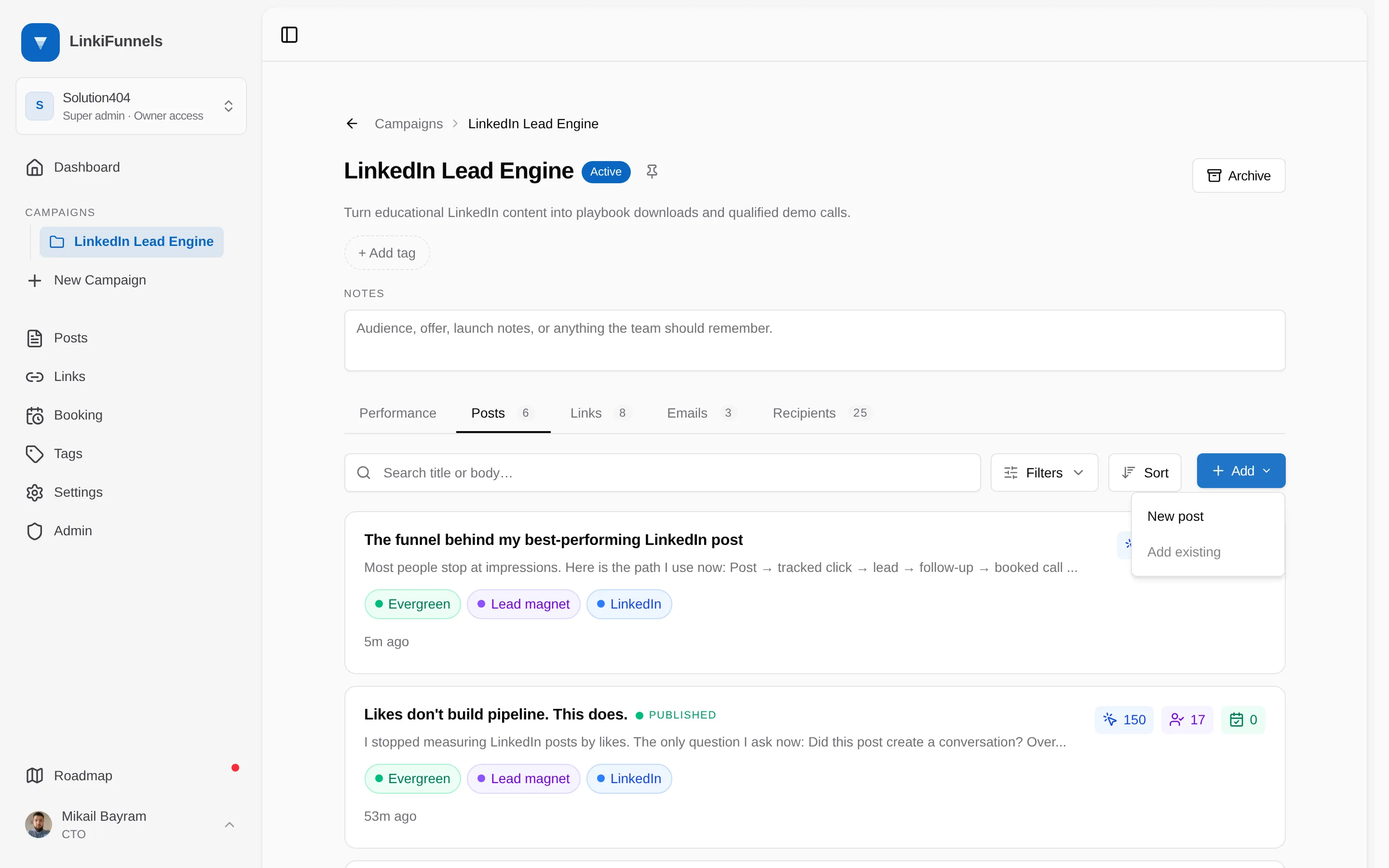
Add existing is greyed out when every post already belongs to a campaign. -
Move a post between campaigns
Once the workspace has more than one campaign, a post’s more actions menu in the composer shows Add to Campaign or Move to another Campaign, and the Posts page shows the same under each post’s campaign actions. Pick the campaign, then choose between moving the original and copying it as a new draft.
Move or copy
Section titled “Move or copy”| Option | What happens |
|---|---|
| Move original | The post and its links move. Existing clicks, leads, sales, and revenue stay on the same links and come along |
| Copy as new draft | The original stays put. The copy gets fresh short links that start from zero, and you choose per link whether it keeps the same destination or points somewhere new |
Links follow their post. There is no separate step for assigning a link to a campaign; attach it to a post in the campaign and it is in.