Connect your LinkedIn account
Give LinkiFunnels permission to publish and schedule posts and pull post analytics. Anyone in the workspace can then publish through the connected account.
LinkiFunnels asks LinkedIn for two separate things, and it helps to know which one you are granting.
| Permission | What it covers | Where |
|---|---|---|
| Sign in with LinkedIn | Your name, photo, headline, and email, so you can log in | Sign in page |
| Publishing account | Publish and schedule posts, and read impressions, reactions, and comments | Settings, then LinkedIn accounts |
You can use LinkiFunnels without the publishing account. Write posts, track links, and copy the finished text to LinkedIn by hand. The publishing account is what removes that last step.
Connect a publishing account
Section titled “Connect a publishing account”-
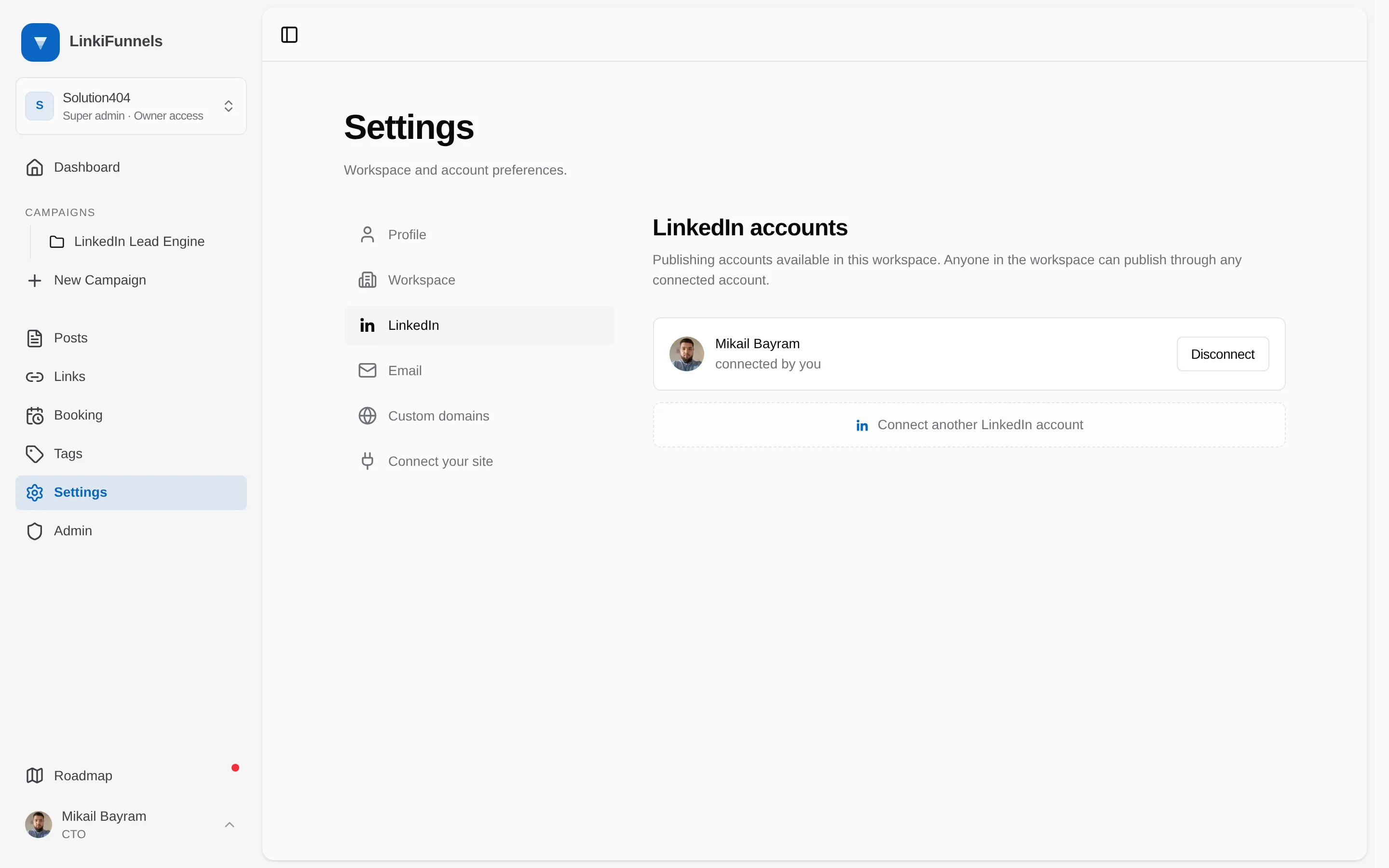
Open Settings, then LinkedIn accounts
The page lists every publishing account connected to this workspace. If there are none yet, choose Connect LinkedIn account. The composer also offers this when you try to publish without one.
-
Approve the permissions on LinkedIn
LinkedIn shows what LinkiFunnels is asking for: read your basic profile, create posts on your behalf, and read your post analytics. Approve, and you return to LinkiFunnels with the account listed as connected.
-
Pick the account in the composer
If the workspace has exactly one connected account, the composer selects it automatically. With several, pick one from the account menu before publishing.
Who can publish
Section titled “Who can publish”Any member of the workspace can publish through any connected account. The account row shows who connected it. If that is not what you want, connect the account in a workspace with only the right people in it.
When the connection expires
Section titled “When the connection expires”LinkedIn grants publishing access for a limited time. When it runs out, publishing sends you back through the LinkedIn approval and then continues where you left off. Scheduling a post past the expiry date is refused with the date LinkedIn authorized until, so pick an earlier time or reconnect closer to the date.
Disconnect
Section titled “Disconnect”On the LinkedIn accounts page, choose Disconnect next to the account. Posts already published stay on LinkedIn. Scheduled posts that used the account will not publish until another account is connected.