Add, edit or delete a contact
Add someone by hand, correct a name or email, put a contact into a campaign's sequence, stop their emails, or remove them.
Viewers can read contacts. Adding, editing and deleting need owner or editor access.
Add a contact
Section titled “Add a contact”Use this for someone who reached you outside your funnels, such as a referral or a name from a conference.
-
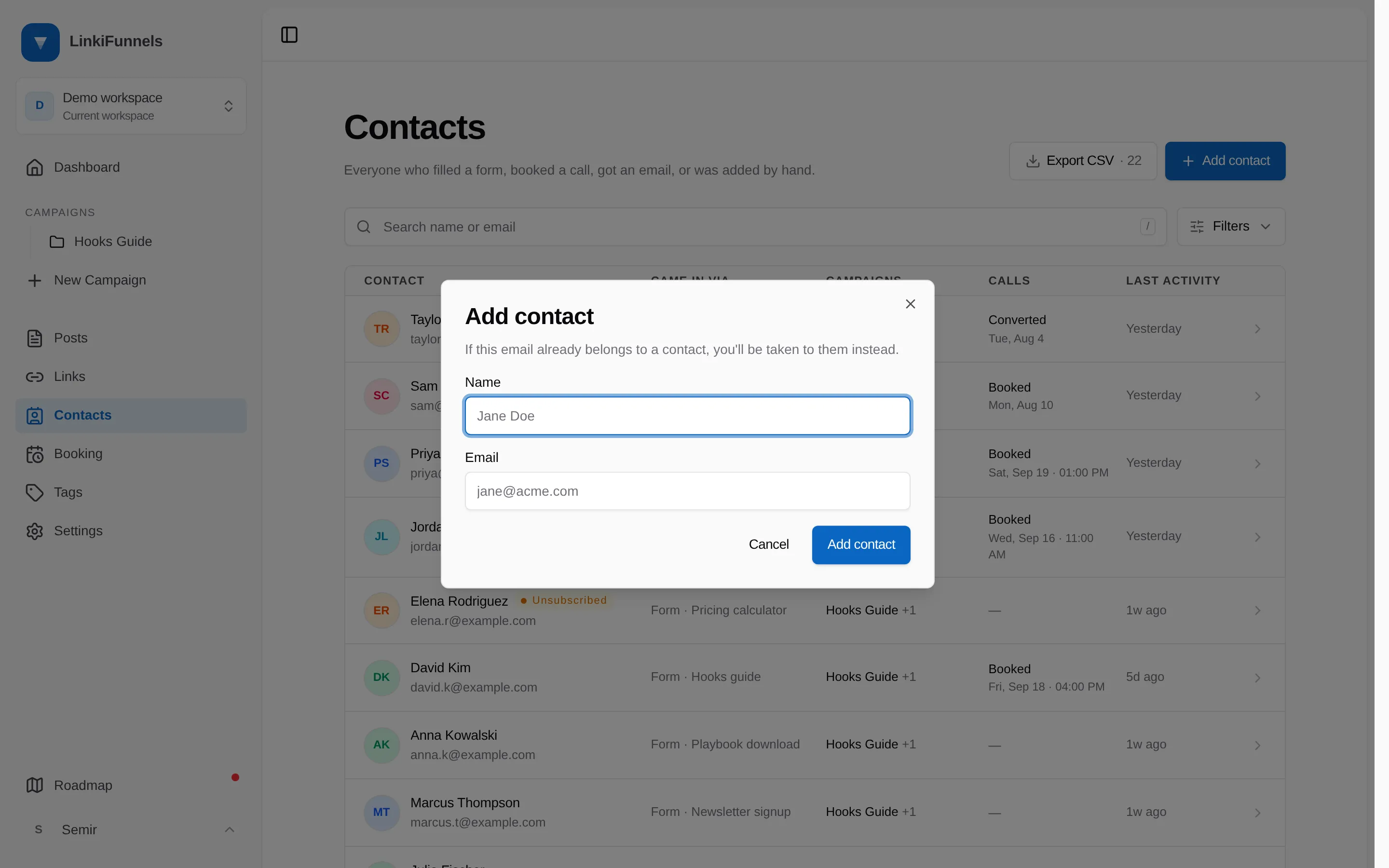
Click Add contact on the Contacts page and enter a name and an email address. The email is required, since it is the identity. You can also pick tags.
-
Save. You land on the contact’s page.
If that email already belongs to a contact, no second record is created. You are taken to the existing person and told so, and their name is left as it was.
To add many people at once, import a CSV.
Edit a name or email
Section titled “Edit a name or email”Edit in the header opens the same two fields. Changing the email changes who this contact is, so two rules apply:
- An address that already belongs to another contact is refused. Two contacts cannot share one email.
- If the old address had unsubscribed, bounced, or complained, that carries over to the new address. Correcting a typo never quietly puts someone back on your list.
Add to a campaign
Section titled “Add to a campaign”Add to campaign enrolls the contact in a campaign’s email sequence, exactly as adding a recipient from the campaign does.
If 50 people have already joined sequences by hand today, they are queued and join tomorrow. See Email sending limits.
The menu only lists campaigns the contact can actually join: ones with at least one active email, that they are not already enrolled in. The button is disabled when there is nothing to join, or when the contact has no email address.
Stop emails
Section titled “Stop emails”The ··· menu holds two ways to stop sending:
- Stop sequence ends the enrollment in one campaign, or Stop all sequences when they are in several. Emails already sent stay in your reporting.
- Unsubscribe from emails suppresses the address across the whole workspace and stops their sequences. Use this when someone asks you directly instead of using the link in an email.
See Handle unsubscribes and bounces for what happens to a suppressed address afterwards.
Delete a contact
Section titled “Delete a contact”Delete contact in the ··· menu asks you to confirm, then removes the person and their sequence enrollments.
What it does not remove is your reporting. The clicks, leads, sales, emails and bookings behind that contact stay exactly as they were, without a contact attached. Campaign open and click rates and revenue are unchanged by a deletion.