Write a new email
Email anyone from the Inbox or a contact's page without a campaign, with Cc and Bcc, files, your booking link, drafts, and Send later.
A new email is a one-off email to the people you pick, the way you would write it in Gmail. It isn’t part of a campaign, so no one is enrolled in a sequence and a sequence someone is already in keeps running. Every new email starts its own conversation in the Inbox. You need a verified sending domain to send, and the email goes out from the sender identity in Settings, Email.
There are two ways in:
- New email at the top of the Inbox.
- Email on a contact’s page, which opens a new email with that contact already in To.
-
Add the recipients
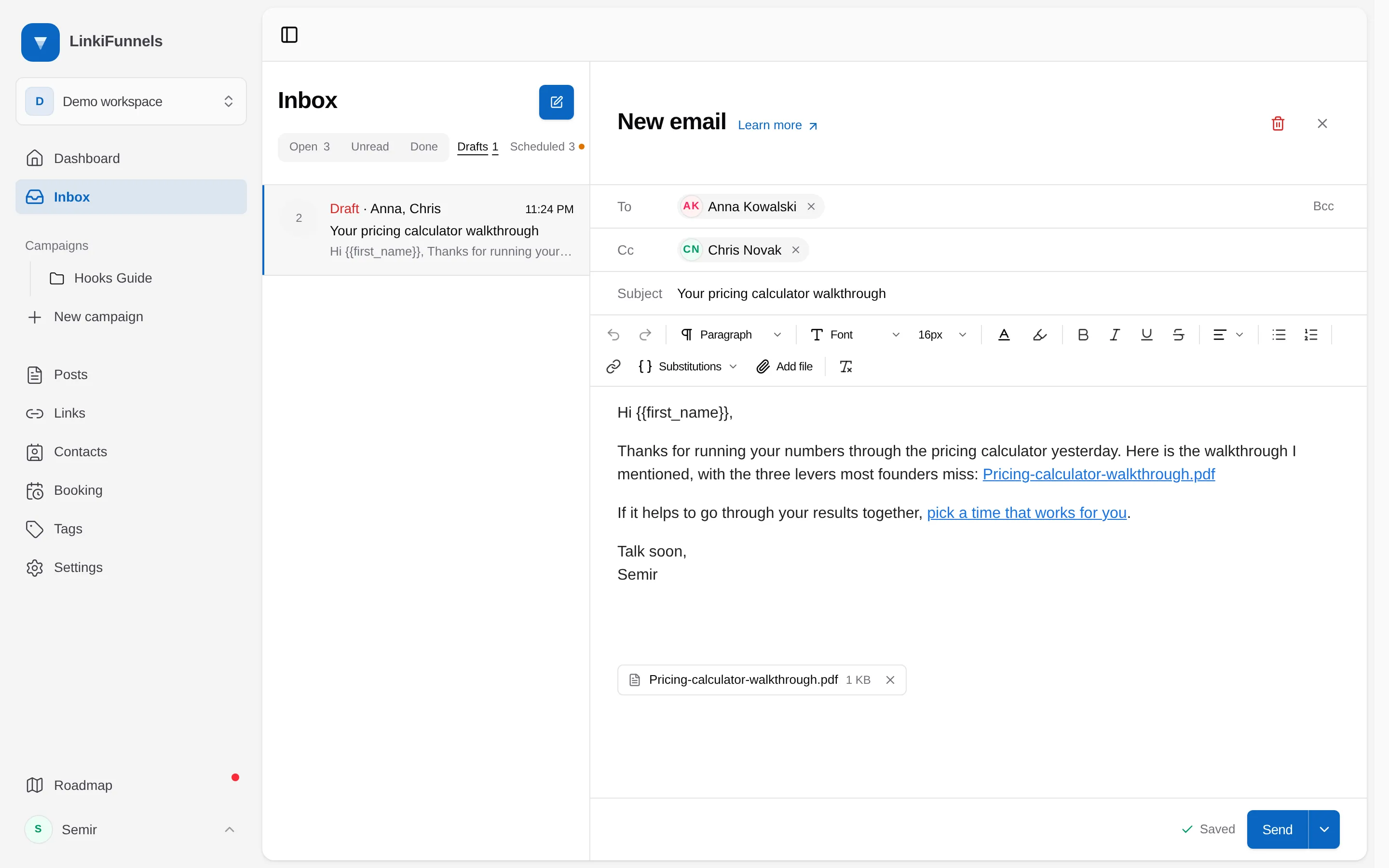
Type a name or an email address in To (1). Matching contacts are suggested as you type. An address that isn’t a contact yet shows as New contact and becomes one when the email is sent. Choose Cc or Bcc to add those fields. One email goes to at most 50 addresses, To, Cc and Bcc together.
-
Write the subject and the message
The editor is the same one campaign emails use. Substitutions (2) adds your booking link and, when there is one person in To, their first name, full name, or email. See One person in To or several.
-
Add files, if any
Add file (3) uploads a file and puts a link to it in the message. Files go out as download links, not attachments, and each download counts as a click. PDF, Word, Excel, CSV, text, images, and ZIP files up to 50 MB each are accepted. Remove the file chip under the message, or delete its link, to take a file out.
-
Send it now or later
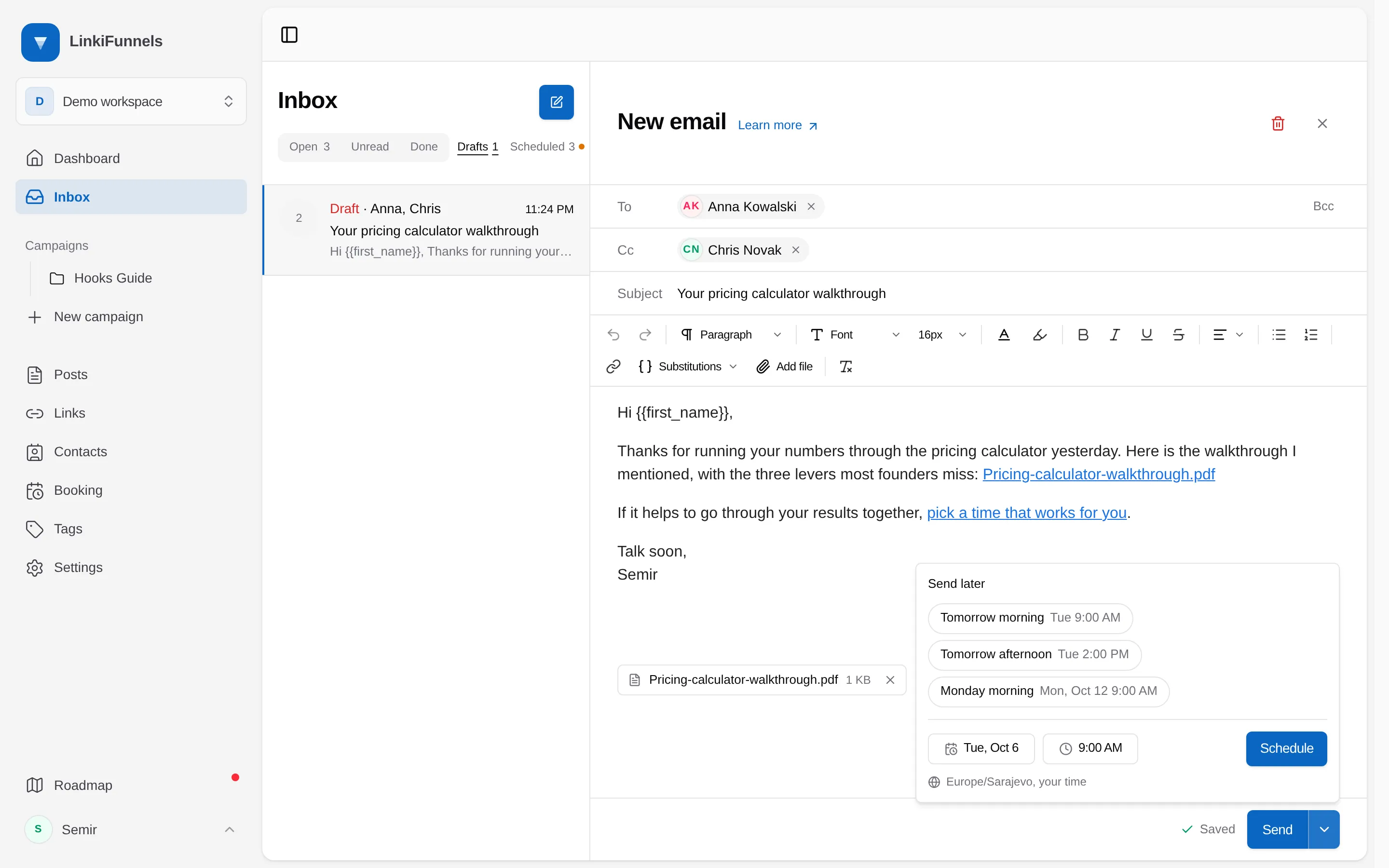
Send (4) sends it right away. The arrow next to it (5) opens Send later. Press Ctrl or Cmd and Enter to send from the keyboard.
Once sent, the email opens as a conversation in the Inbox. Replies from anyone on it land in that conversation when replies are read in LinkiFunnels. Under the message, a quiet line shows Sent, Opened, and Clicked with the link that was clicked, and every recipient gets an Emailed entry on their contact page.
One person in To or several
Section titled “One person in To or several”Personalization only works when the email is written to one person.
| One person in To | Several people in To | |
|---|---|---|
| First name, full name, email | Filled in for that person | Not in the Substitutions menu |
| Booking link | Tagged with that person, so a call they book is credited to them | Your plain booking page link, without attribution |
People in Cc and Bcc don’t count, so to keep the personal version, put one person in To and the rest in Cc or Bcc. If the message already has a variable and you add a second person to To, sending stops with “Variables need one To recipient. Remove them from the email, or move the others to Cc or Bcc.” The booking link needs a booking page.
Drafts
Section titled “Drafts”A new email saves itself as you write, and Saved appears next to Send. Your unsent emails are listed under Drafts, next to the Open, Unread and Done filters at the top of the Inbox. Drafts are yours: teammates don’t see them. Open one to pick up where you left off. The trash icon at the top of an open draft discards it with its files.
Send later
Section titled “Send later”-
Pick a time
Choose Tomorrow morning, Tomorrow afternoon, or Monday morning (6) to schedule it right away, or pick any date and time up to a year ahead and choose Schedule (7). Times are in your own time zone, shown under the picker (8).
-
Find it under Scheduled
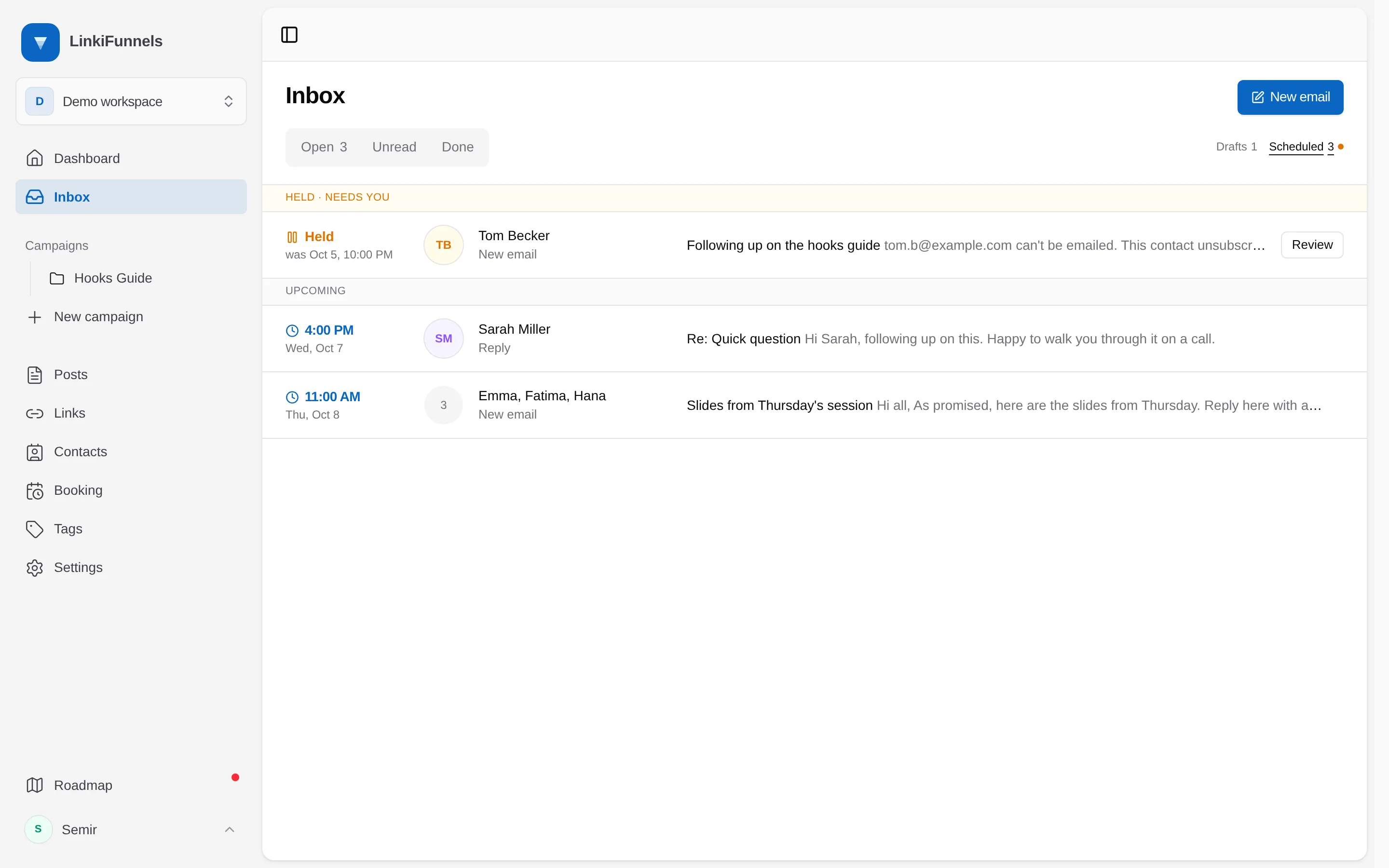
Scheduled, next to Drafts, lists everything you have scheduled, new emails and replies, by send time. Held emails come first, under Held · needs you (9). An orange dot next to Scheduled means something is held.
-
Change it before it goes
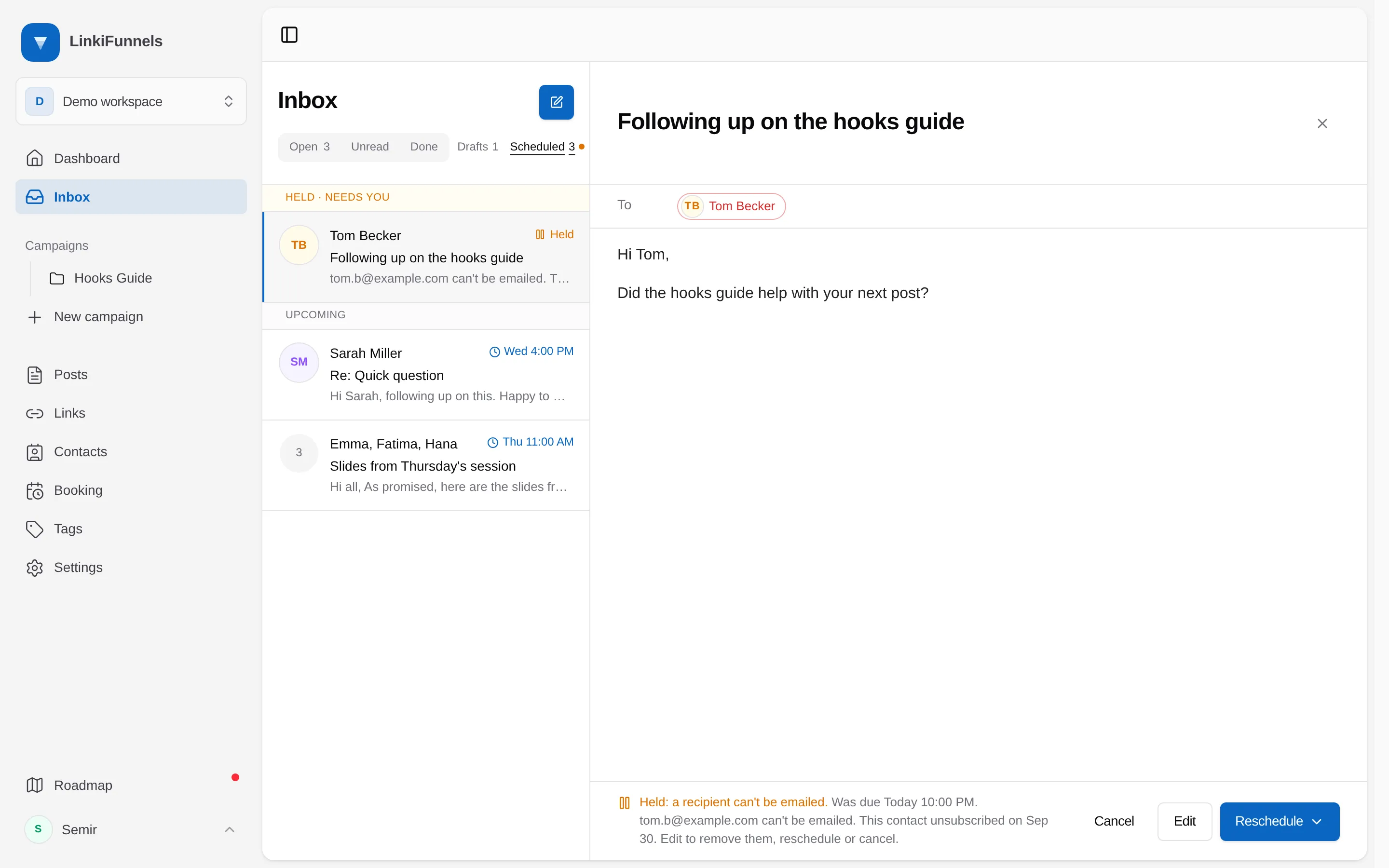
Open a scheduled email to Reschedule it, Edit it, which takes it back to Drafts so you can change it and schedule it again, or Cancel it, which moves it to Drafts without sending. A scheduled reply opens in its conversation instead, see Read and answer replies.
Held emails
Section titled “Held emails”LinkiFunnels never sends a scheduled email more than 10 minutes late or to someone it shouldn’t. If the email can’t go out at its time, it is held instead, and it waits for you. Choose Review (10) to open it.
| What you see | Why it was held |
|---|---|
| Held: sending is paused | Sending was paused for the workspace, or email setup isn’t finished |
| Held: a recipient can’t be emailed | Someone in it unsubscribed, bounced, or marked your email as spam since you scheduled it |
| Held: daily sending limit reached | The workspace had reached its daily sending limit when it was due |
| Held: it didn’t go out on time | It was more than 10 minutes late, so it wasn’t sent |
| Held: it wasn’t sent | Sending failed, it couldn’t be confirmed that it went out, or you no longer have edit access to the workspace |
The note under it (11) says what happened and which recipient is affected. Reschedule it, Cancel it, or choose Edit (12) to remove someone and send it again.
Daily sending limit
Section titled “Daily sending limit”New emails share the workspace’s daily sending limit with campaign emails. Each address in To, Cc and Bcc counts once. When an email would go over it, the composer says “Daily sending limit reached, resets at midnight.” and you can’t send it until the limit resets at midnight UTC. Send later still works, so you can schedule it for the next day. See Email sending limits.
Someone who unsubscribed, bounced, or marked your email as spam can’t be emailed. They show in red in the recipient fields with the reason, for example “This contact unsubscribed on Sep 12”, and the email can’t be sent until you remove them.