Track conversions in the browser
Add the LinkiFunnels pixel to your site and LinkiFunnels records a lead whenever a visitor who clicked your link submits a form or finishes a flow with their email.
The pixel watches the forms on your site. When someone submits one with an email address, or types an email and then clicks a button that finishes a flow, the pixel sends the email and the click id to LinkiFunnels. No code beyond the pixel itself.
-
Copy the pixel
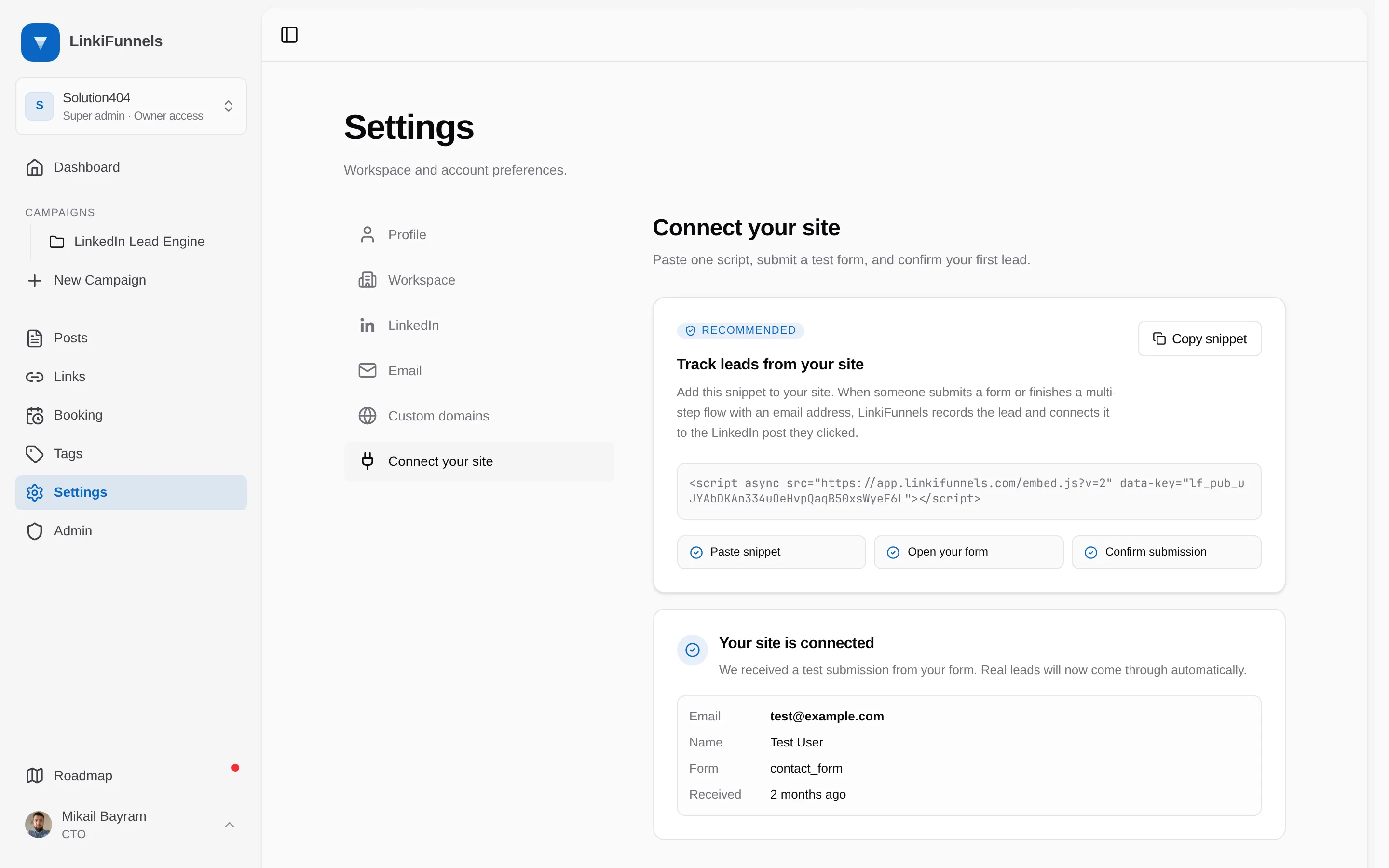
Open Settings, then Connect your site, and choose Copy pixel. It looks like this, with your workspace’s own key:
Before </head> or at the end of <body> <script async src="https://app.linkifunnels.com/embed.js?v=3" data-key="lf_pub_..."></script>The key is a public tracking key. It identifies your workspace and cannot write anything except leads.
-
Paste it on every page that has a form
Put it in the site template so it is on every page, including the landing page your link points at. The pixel needs to be on the first page the visitor lands on, because that is where it reads the click id from the URL and stores it.
-
Test the installation
On the same settings page, enter the address of a page on your site that has a form and choose Run test. LinkiFunnels opens the page in test mode. Submit the form with any email. The settings page changes to Your site is connected and shows what arrived. Test submissions do not create leads. The test link is valid for 15 minutes.
What the pixel captures
Section titled “What the pixel captures”- The email, plus first name, last name, full name, phone, and company when a field for them exists. Fields are recognized by their name, id, label, placeholder, autocomplete attribute, or input type.
- Which form or button triggered the lead.
- Up to ten custom fields you mark with
data-lf-captureon the input.
Passwords, hidden fields, file inputs, and anything that looks like a token, card number, or other secret are never read. Put data-lf-ignore on a field or a whole form to exclude it.
Flows without a form
Section titled “Flows without a form”If your sign up is a multi-step flow, the pixel keeps the email it has seen and sends the lead when the visitor presses a button that finishes the flow, such as Submit, Finish, Register, Book, or Create account. Add data-lf-event="trial_started" to a button to name the event yourself.
Buttons that leave your site
Section titled “Buttons that leave your site”A WhatsApp, Calendly, or external checkout button leaves the page before any form is submitted, so the pixel cannot record it. Send those clicks through a redirect on your own domain instead. See Track off-site CTAs.
Site builders and AI tools
Section titled “Site builders and AI tools”If a tool builds your site for you, use Settings, then Connect your site, then Set up with AI. It copies a set of instructions and a token you hand to the tool, which then installs the pixel or the server-side call for you. See Set up with an AI builder.