Build an email sequence
Chain several emails with waits between them, send follow-ups as replies in the same thread, control who is enrolled, and pause or resume the whole sequence.
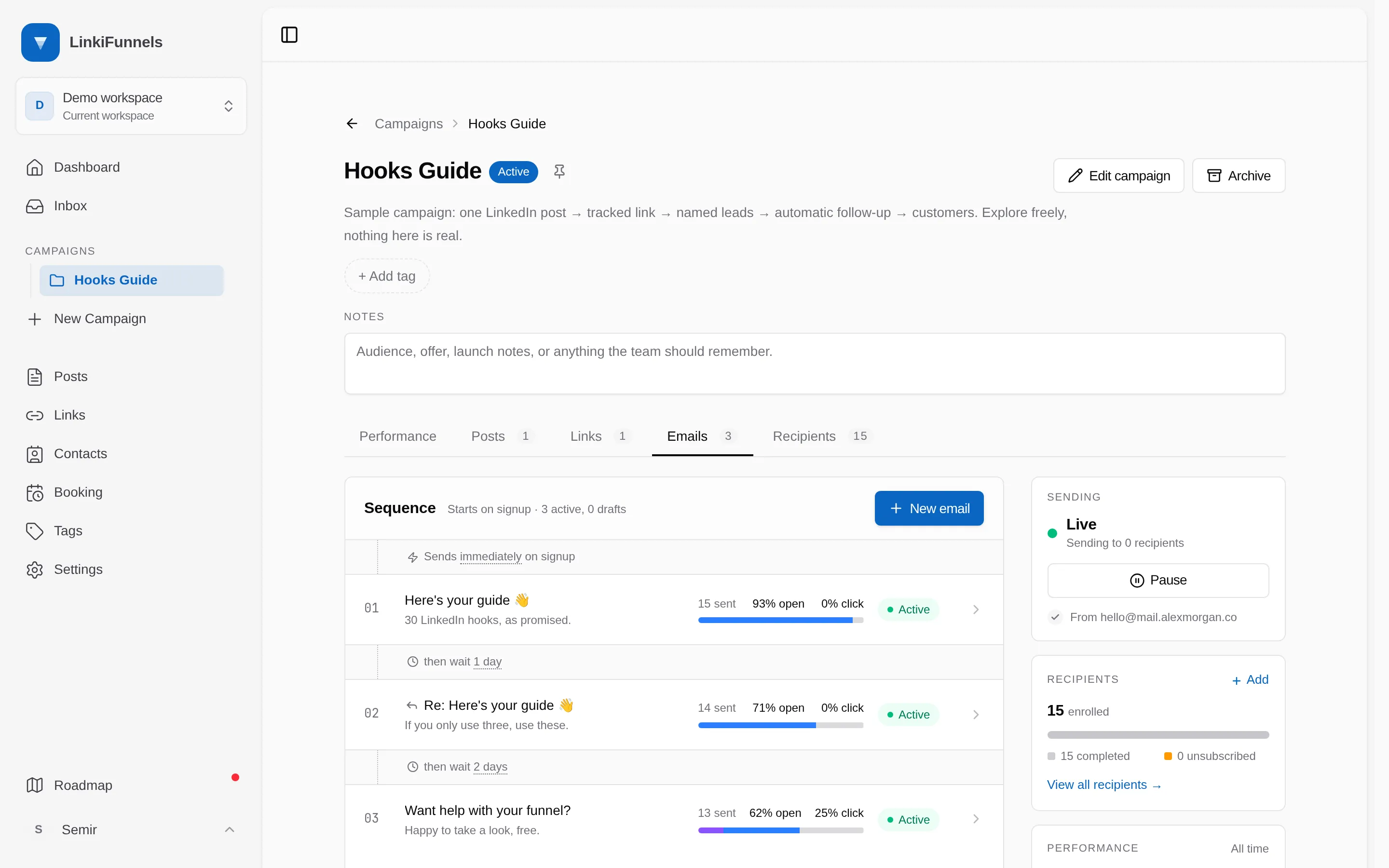
Each campaign has one sequence: an ordered list of emails with a wait before each one. A lead who enters the campaign starts at the top and moves down.
-
Add emails in order
A new email goes after the last one unless you pick another place under Send after. Write and test each one as described in Send your first campaign email.
-
Set the waits
The row above each email says when it goes out: Send immediately, or a delay in minutes, hours, or days after the previous step. Change it in place; it saves as you go. The first email’s delay counts from the moment the lead is enrolled.
-
Activate the emails you want sent
Each email is a draft until you switch it to Active, and an email needs a body before it can be activated. Leads skip drafts. If the last emails are drafts, leads complete the sequence after the last active one.
-
Publish
Publish makes the sequence live. Choose Enroll new leads only or Also enroll existing campaign leads. Existing leads are spread over several days so your daily volume stays steady.
Who is enrolled
Section titled “Who is enrolled”A lead is enrolled when a tracked link in this campaign produces a lead with an email address, the sequence is live, and at least one email is active. Unsubscribed or suppressed addresses are never enrolled, and nobody is enrolled twice.
You can also add people you know by hand: by selecting contacts in Add recipients, where you can search, filter by tag and select all, or from a contact’s page. People added by hand join at 50 per workspace per day and the rest wait in a queue; see Email sending limits. Removing someone stops their remaining emails.
Send follow-ups in the same thread
Section titled “Send follow-ups in the same thread”By default every email arrives as a new message. A follow-up can instead arrive as a reply to the email before it, so the whole sequence reads as one conversation in the contact’s inbox. This suits slow, personal follow-ups spaced weeks apart.
There are two ways to turn it on:
- In an email, choose the earlier email under Send after and switch on Send as a reply to this email.
- In the email you want to follow up, open the options menu and choose Add reply in this thread. A new email opens right after it with the switch already on.
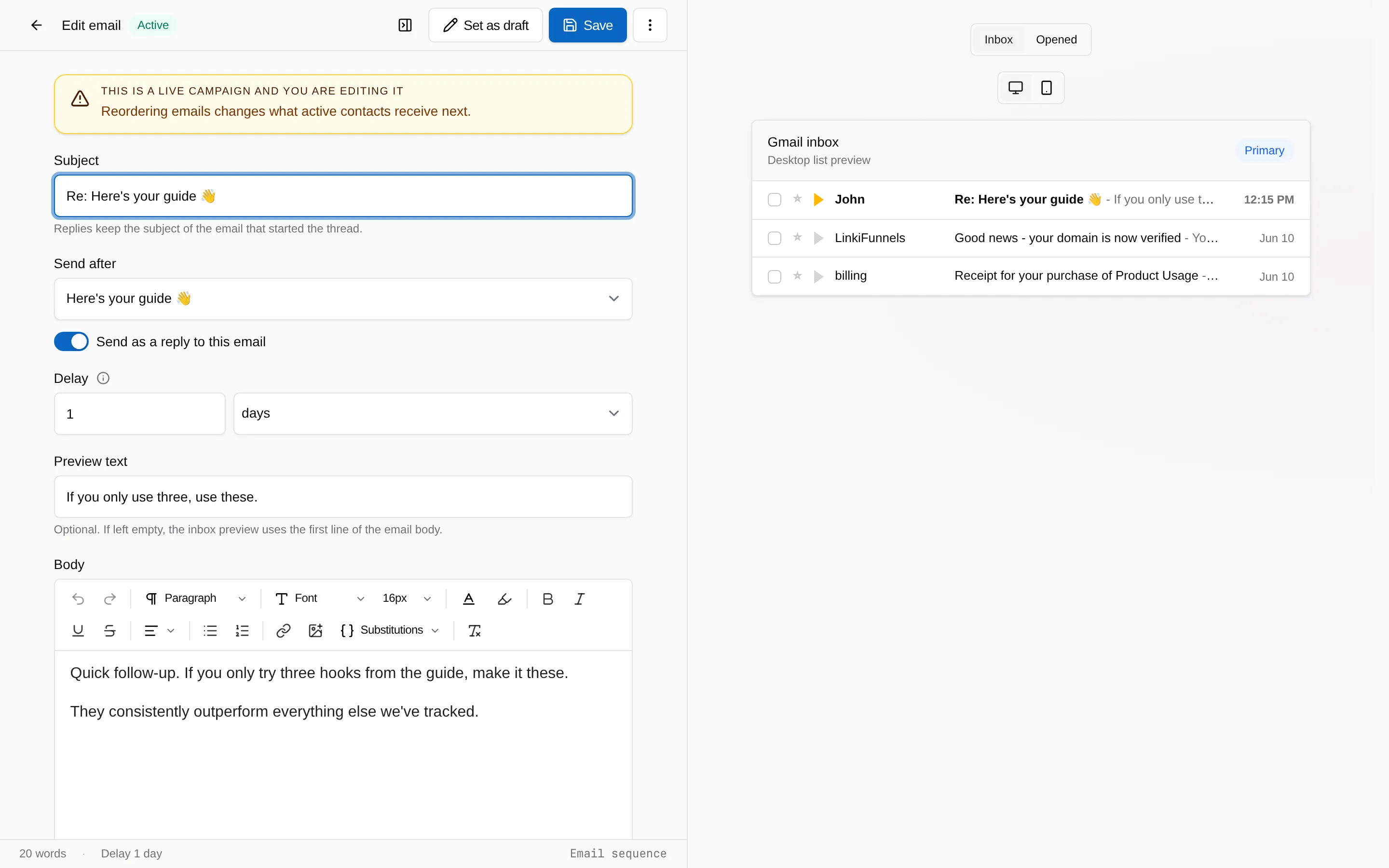
A reply keeps the subject of the email that started the thread, shown as Re: followed by that subject, so mail clients group them together. The subject field is locked while the switch is on.
- It answers the last email the person received. If the step above is a draft, or did not reach this person, the reply goes under the email before it.
- Nothing received yet. If no earlier email reached them, it goes out as a new email under its own subject.
- Starting over. Switch it off on any later email to begin a new thread from there. The first email is never a reply.
In the sequence, a reply arrow before the subject marks each step that is sent as a reply.
Pause and resume
Section titled “Pause and resume”Pause stops all sends. Leads keep their place. Resume continues from where each lead was. Archiving a campaign pauses its sequence.
Reading the numbers
Section titled “Reading the numbers”Each email row shows sent, open rate, and click rate. Opens count each recipient once. Clicks exclude non-browser clients such as security scanners, the same way link clicks do. The Recipients card shows how many people are at each step, completed, unsubscribed, or blocked because there is no active next email.